
Figure
Compose publication figures from plots, images, text and 3D models.
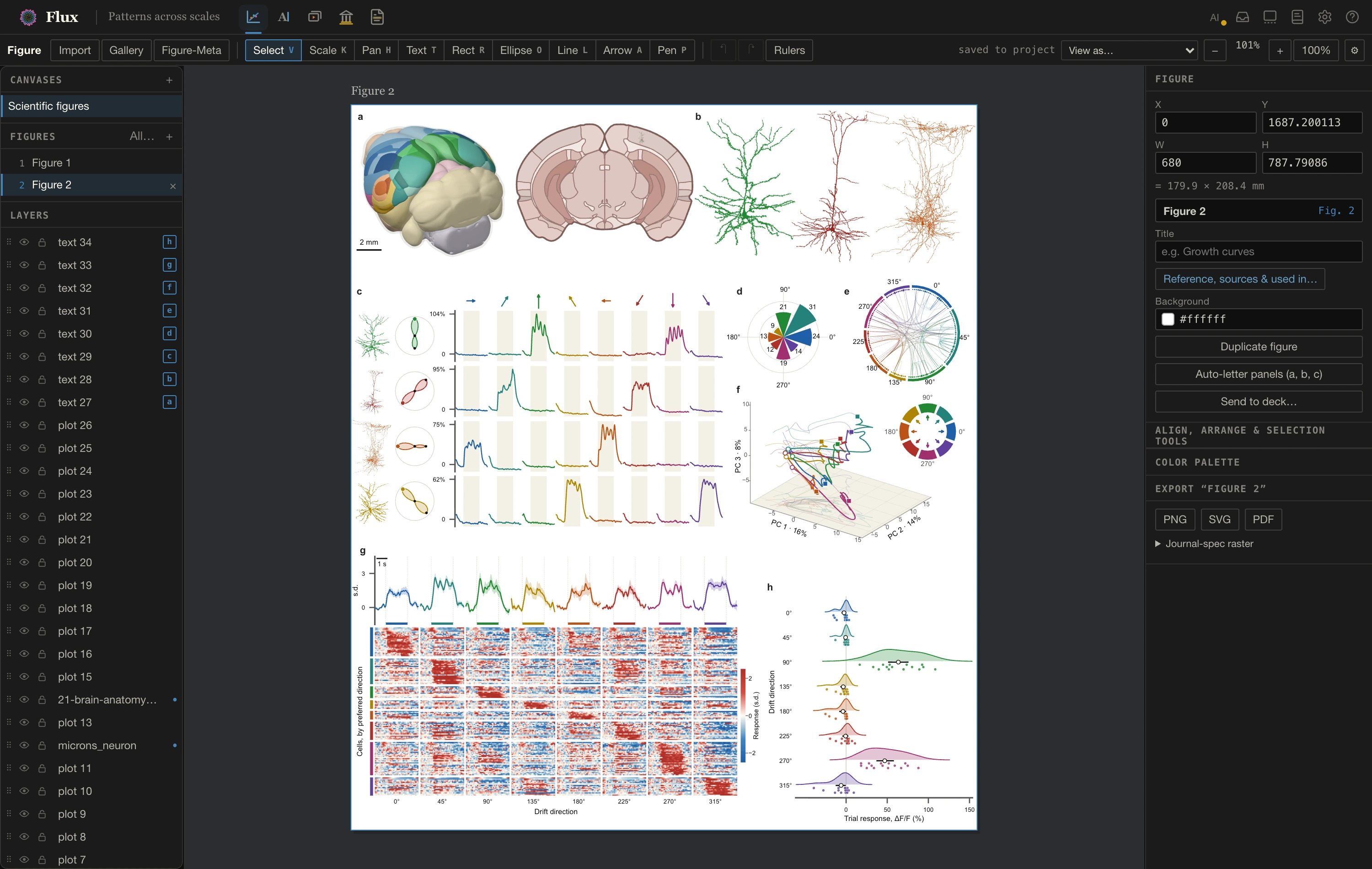
The workspace
Shortcuts are written with Ctrl and Alt. On macOS, press ⌘ Command for Ctrl and ⌥ Option for Alt; Keyboard shortcuts lists every Figure shortcut.
- Tools are single keys — V select, K scale, H hand (pan), T text, R rectangle, O ellipse, L line, A arrow, P pen.
- The sidebar lists Canvases (pages — add, rename, delete), Figures on the active canvas (family-aware number badges — “2”, “S2”, “ED3”; double-click opens Figure-Meta’s Name tab), and Layers — the z-ordered element tree, with per-row show/hide, lock, drag-to-reorder, and collapsible groups. Drag its right edge to resize it; Ctrl+B hides it (bold still wins when a text element is selected).
- Clicking a figure’s name takes you to it — the view centres on that figure at whatever zoom you are already working at, so a big canvas stays navigable without hunting. Your zoom is never changed for you. Click the name again after panning away to snap back to it.
- Drag a figure’s row up or down the list to reorder the figures — or press Alt+↑ / Alt+↓. Shift+click picks a run of rows and Ctrl+click adds or drops one, and the whole pick then moves as a block. This changes the order of the list only: nothing moves on the canvas, and no figure is renumbered — reordering and renumbering are separate on purpose, so use Figure-Meta’s Name tab below when you want the numbers to follow.
- The Inspector puts the selection’s position, size and appearance first. Alignment and arrangement tools, the colour palette and journal export options can be expanded as needed; drag its left edge to resize it, Ctrl+Shift+B hides it for a clean canvas.
- Ctrl+Z undo, Ctrl+Shift+Z redo, zoom controls in the toolbar (5%–25600%). Undo and redo buttons show when a step is available. The toolbar distinguishes waiting changes, saving, and a failed save with Retry. If a save fails, switching between Figure and Slides keeps your edits in the original editor until they can be saved.
Finding and naming figures
Open All… in the Figure sidebar, or Reference, sources & used in… in the Inspector, for the project-wide figure catalog. Search by title, designation, reference key, or canvas. Each result has a preview, source status, and links to the saved documents that use it. Paper’s insert and reference pickers show the same title, designation, canvas, and key.
A figure has three distinct labels:
- Title is the human name, such as “Growth curves”. It is the primary label in lists and pickers. Ctrl+R or a double-click on its sidebar row opens the title editor.
- Designation is the publication family and number, such as “Figure 2” or “Supplementary Figure 4”. The Numbering tab moves a figure within its family; the title editor also lets you choose its family (Alt+↑/↓) and number. Numbers stay contiguous: inserting a number shifts its neighbours, and deletion compacts the surviving figures.
- Permanent reference is the stable key, such as
@fig-growth. Use Copy in the catalog to copy it. Title changes, numbering changes, canvas moves, and manuscript edits keep that key attached to the same figure. Duplicating a figure creates a new key.
Paper order does not change figures or their numbers. Reorder prose, references, and embedded figures freely. Paper displays the numbers chosen in Figure, and exports use those same numbers. Canvas list order is also separate from publication numbering.
Existing projects retain their reference keys and filenames. The readable title is not a filename, and you do not need to rename stored files to rename a figure.
Panels and captions
- Mark a text element as a panel label with Alt+L or the Panel label toggle in its F-menu; Auto-letter panels (in the Inspector’s Figure section) letters them a, b, c… in reading order.
- Panel references follow the panel itself when you relabel or auto-letter panels. Flux updates saved manuscript references and open editor buffers automatically. If removing a referenced panel would make its reference point somewhere else, the save stops with a clear conflict until you restore the panel or repair that reference.
- Alt+M opens Figure-Meta in Figure or Paper, starting with the active figure. Browse every canvas, search and filter families, and edit the Captions or Name tab. The figure and composed caption preview sit beside the fields; drag the divider to resize them. The Name tab includes family, number, title and custom families. Existing captions and permanent references are preserved. Captions flow into the manuscript and exports automatically.
- In Figure-Meta, each field grows to fit and the fields column scrolls. Set the typing size with the − / + controls above the blocks (also in Settings → Figure). Click a block’s letter or heading to collapse or expand it.
- The preview fits the entire figure and caption by default. Ctrl+scroll zooms around the pointer; drag to pan, choose a percentage, or press Fit to see everything again.
- Add closing caption · ps adds optional prose after the final panel caption. It appears as ordinary text, with no “ps” label, and stays at the end when panels are added or reordered. Remove it with its × button; metadata Undo can restore it.
- Shift+Alt+M opens Figure-Meta already pinned in a separate window; Pin open and Dock move the same view between windows. You can keep editing the workspace while it is pinned. Shift+Alt+G likewise opens the Plot gallery already pinned.
- Alt+T enters arrange: reflow a messy selection into a tidy row, column, or grid from the keyboard, live, as one undo step.
- Shift+R shows rulers (drag from them for guides); Shift+G shows the background grid.
Exporting figures
The Inspector’s Export section renders the selected figure to PNG, SVG, or PDF. For submissions, expand Journal-spec raster, pick a target width (single/double column presets or custom mm), a DPI and transparency, and export TIFF or PNG at exact print size.
An export captures the figure when you start it, so edits made while choosing a filename cannot change its artwork or dimensions. Large raster exports offer Cancel export and keep the editor responsive. An unsupported output size reports an error rather than reducing its resolution. PDF pages use the figure’s physical dimensions.
Send to deck… turns the figure into a slide, still linked to the same plots.
Troubleshooting
| Symptom | Cause → fix |
|---|---|
| Ctrl+click won’t select a part | The plot isn’t semantic (imported without its manifest) → re-save via fp.save and re-import, or check flux validate-plot |
| An import landed huge / outside the frame | True-size import of a large plot → Ctrl+Shift+I to bring it inside, then resize deliberately |
| Restyles vanished after regenerating | The plot’s series names changed in the script → keep series= names stable (see Semantic plots) |
| “These figures changed on disk” banner | Another tool or agent edited them → Reload theirs or Overwrite with mine — nothing is lost silently |
| “Some figures could not be loaded” | A referenced canvas is missing or unreadable. Restore or repair it and reopen the project; saving is blocked to preserve the existing files. |
| “Caption edits conflict” | Both the caption and its Markdown copy changed. Reconcile those versions before saving; changing panel labels alone does not create an external edit. |
For 3D model problems (grey tiles, Orbit, missing GLB files), see 3D models troubleshooting.