
Reader
Read PDFs, compare papers, and keep notes attached to their source.
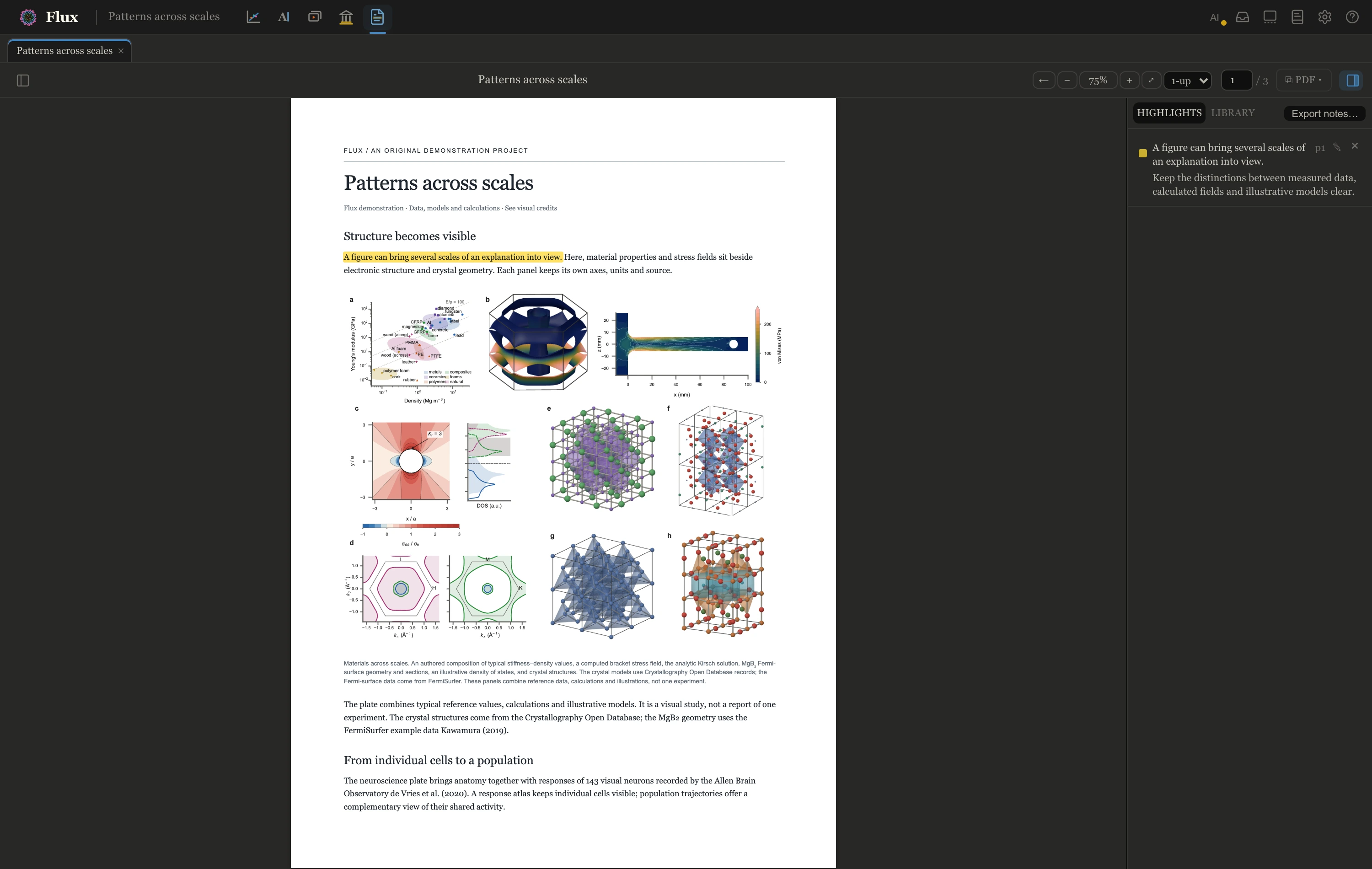
Open a paper from the Library (the Read PDF button on a row, or Ctrl+Shift+click the row) and you get a fast PDF view whose highlights and notes anchor to the text itself — they survive re-downloads, re-opens, and zooming, and they belong to the paper, not to any one project.
Getting around
The toolbar carries the essentials: zoom (+ / −, 0 fits the width, ⤢ fits the page height; Ctrl+scroll or a pinch zooms at the cursor), a page-layout picker (1-up, 2-up, Grid, Row), and a page-number box to jump anywhere. PageUp/PageDown and Home/End work as you’d expect, and after you follow a link or outline entry, the ← button in the toolbar takes you back to where you were.
The panel icons at each end of the toolbar show and hide the sidebars — Ctrl+B for the left one, Ctrl+Shift+B for the right.
Two sidebars flank the page, and both are drag-resizable — pull the edge beside either one, or double-click it to go back to the default width. The left sidebar has four tabs:
- References — the paper’s own reference list (once the paper is enriched): each entry expands to its abstract, can be added to your library with + FluxLib, or opened by DOI. When an entry is already in your library and its PDF is on disk, the row offers Open PDF — one click and it’s a new tab.
- Cited by — the papers that cite this one, looked up from OpenAlex. Sort by Most cited (influential follow-ups first) or Newest, and hit ⟳ to re-query. The list is cached, so coming back to it is instant and works offline; rows behave exactly like reference rows, Open PDF included. (Needs the paper enriched, for its OpenAlex id.)
- Search — find-in-document, below.
- Outline — the PDF’s bookmarks, click to jump.
Each paper remembers its own page, zoom, and layout between sessions; the sidebar widths are a workspace setting shared by every paper.
Searching your library while you read
Alt+R — the same chord as the manuscript writer’s reference search — opens a Library panel in the right sidebar, next to your highlights. Search the whole reference library by title, author, year, journal, or citekey (author:siclari year:2017 works, as in the Library), and open any hit’s PDF as a tab or its DOI in your browser. Papers already open as tabs are marked. The panel is a panel, not a popup: it stays until you switch back to the Highlights tab, so you can keep it beside you while you read.
Tabs
Every paper you open becomes a tab in the strip above the toolbar, so a few papers stay a click apart — no re-finding them in the Library. Opening an already-open paper just focuses its tab. Switching between recently viewed tabs is instant, with your page, zoom, and even a search in progress exactly as you left them; tabs you haven’t looked at in a while reload on demand, restored to their remembered page and zoom.
- Ctrl+Tab / Ctrl+Shift+Tab (or Ctrl+PageDown / Ctrl+PageUp) cycle through tabs.
- Ctrl+W, a middle-click, or the tab’s × closes one — the next tab over takes its place.
- Drag a tab along the strip to reorder it.
- Your open tabs (and which was active) come back when you restart Flux.
Two papers side by side
Alt+click (or Cmd+click) a tab to open that paper in a second pane beside the current one — compare a method against the paper that introduced it, or keep a review open while you read. Each pane has its own tab strip and switches independently; tab shortcuts act on the pane you’re focused in. You can even show the same paper in both panes — a highlight made in one appears in the other. (Alt+click the Reader icon in the top bar to split, as in every workspace.)
Highlights and notes
Select any text and a small colour menu appears, with five highlight colours (yellow, green, blue, pink, orange). Click one and the highlight is saved. Click a highlight later to open its popover: recolour it, attach a comment, copy the text, or delete it. The right sidebar’s Highlights tab (Alt+A) lists every highlight with its page; click one to scroll to it, and edit or delete from there.
Highlights are anchored by the quoted text (with a little context on each side), not by pixel positions — so they re-attach correctly even if the PDF is re-fetched. If a paper’s text changes so much that a quote can’t be found, the note is kept and marked detached rather than lost.
Export notes… (on the Highlights tab, and in the paper’s details in the Library) writes all of a paper’s highlights and comments to a tidy Markdown file — grouped by page, quotes with your notes beneath, citation and DOI in the header — ready to drop into your own notes system.
Annotate a passage for an agent
To send a passage to an agent rather than keep a private note, select it (or open a saved highlight) and click ✦ Annotate this passage. The shared Annotate surface opens with the citekey, page and selected text already attached. Add your note and choose To: Inbox, Any watching agent, or a named session. Ctrl+Shift+M does the same from the current Reader view; Escape closes the surface and keeps the draft. See Annotations, comments and the inbox.
Search
Ctrl+F opens the Search tab in the left sidebar. Every match in the document is listed there with the text around it, grouped by the section it falls in (or by page, for PDFs without a bookmark outline) — so you can see all your hits at once instead of stepping blindly through them. Click any result to jump straight to it, or work through them in order with ‹ › (or Enter / Shift+Enter in the query box). Matches stay highlighted throughout the document, with the current one picked out. Escape clears the query and leaves the pane open. (Arriving from a full-text ft: search in the Library lands you here with the search already run.)
Figures and snips
- Alt+drag a region of the page to pop out a figure: the region floats in its own panel beside the text — study a figure and the paragraph discussing it side by side, drag it around, resize it, jump back to its page.
- Ctrl+Alt+drag a region to capture a paper snip: a high-resolution PNG saved into your current project’s
plots/paper_snips/, after a quick naming popover. The snip carries its provenance — paper, page, and formatted citation — inside the file, so when you later place it in a figure or slide, “copy citation” still knows where it came from. (Snips need a project open, since they save into it.)
Citation peek
Hover any citation link in the PDF and a card shows what it cites — authors, year, title, and how often it’s been cited — with one-click + FluxLib to grab it, or a jump to the bibliography entry. Follow it, and ← brings you back.
Supplements
The ⧉ PDF switcher in the toolbar flips between the main paper and its supplementary files, and Add supplement… attaches new ones. Supplements live beside the paper in your library; highlights always anchor to the main text.
Working with an agent
An agent in your own terminal or editor can read your live reading context through Flux’s MCP tools: which paper is open, the current page, and the selected passage. See Annotations, comments and the inbox.
Troubleshooting
| Symptom | Cause → fix |
|---|---|
| “No PDF on disk” when opening | The paper’s PDF isn’t fetched yet → fetch it with the row’s ⬇ button or Get PDFs in the Library |
| Reference list is empty | The paper isn’t enriched → Enrich in the Library |
| A highlight shows as detached | The stored quote no longer matches this PDF’s text — the note is preserved; re-highlight to re-anchor it |
| Snip capture says “Open a project” | Snips save into the current project’s plots/ — open one first |