
Library
Collect references and PDFs in a library shared by your projects.
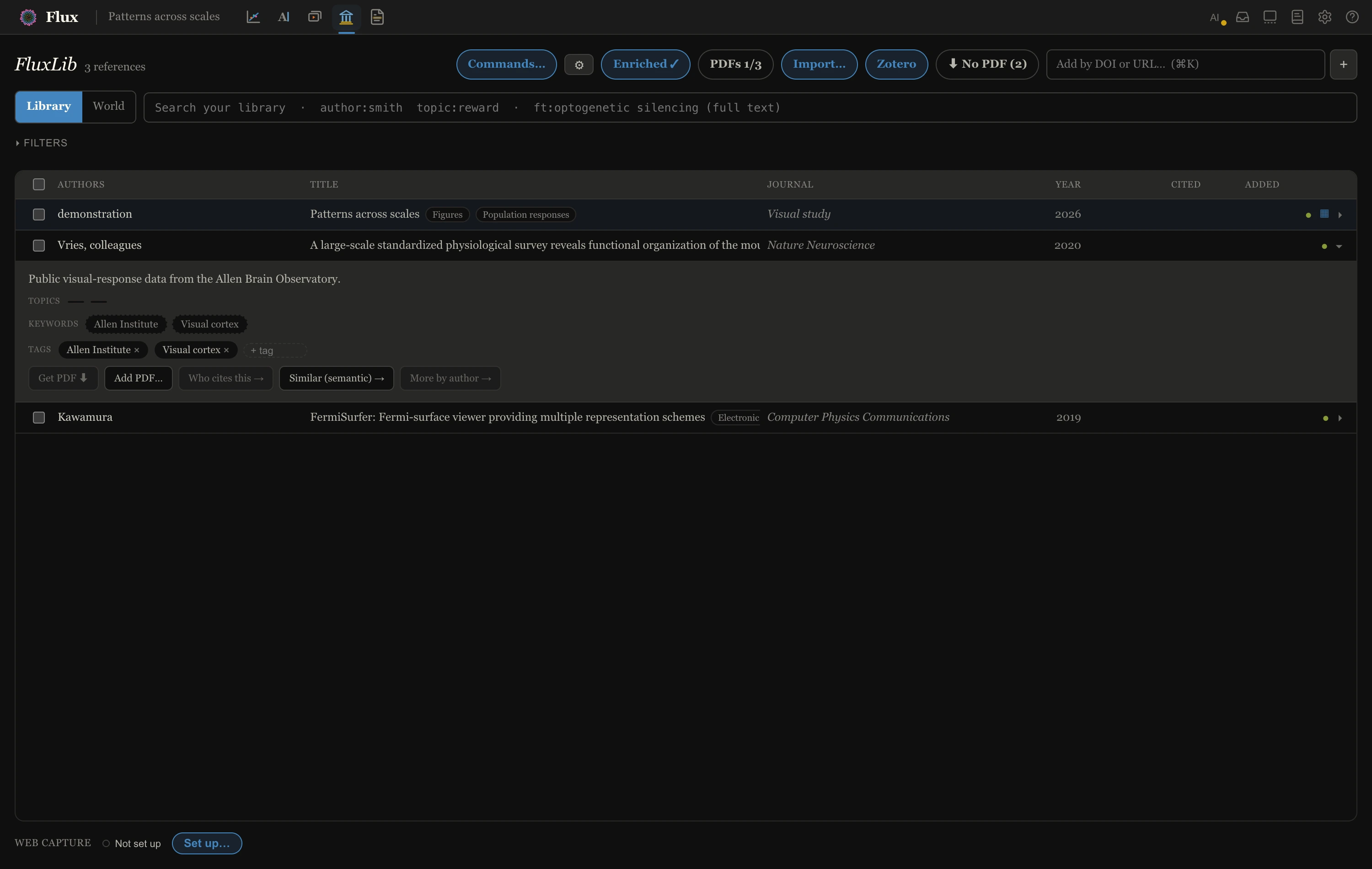
Library is your reference manager. It manages FluxLib, the machine-global collection shared by all your projects — every paper you save, its PDF, your highlights, tags, and reading status — while each project cites its own subset. The header shows the collection and its size; everything below is the grid.
Getting papers in
- Paste a DOI or URL. The add box in the header (“Add by DOI or URL…”) takes a bare DOI, a
doi.orglink, or any paper’s web address — Flux reads the page’s citation metadata to find the DOI. arXiv pages work too. - Web capture. At the bottom of the Library, the Web capture row shows whether the browser extension is connected; Set up… walks you through installing it. From then on, one click on any paper page — the article or the PDF itself — saves it here, with its PDF and its supplementary files. See Capturing from the web.
- Bulk import. Import… reads a
.bibor.risfile (Zotero, EndNote, Mendeley, BibTeX exports), previews what’s new vs. already-known before committing, and can pull the PDFs a Zotero export references alongside. - Zotero sync. The Zotero button connects FluxLib to a Zotero library through a Better BibTeX export with Keep updated ticked. From then on, anything you add in Zotero flows into FluxLib at startup, live while Flux is open, or on Sync now. The sync is one-way and additive: papers you already have are recognized and left untouched, and nothing is written back to Zotero. PDFs are either copied into FluxLib (the default, so FluxLib alone is a complete backup) or linked to Zotero’s folder. Agents can run the same sync with
flux zotero-sync. The Zotero integration guide covers setup, copying versus linking, very large libraries and troubleshooting. - The inbox folder. Drop PDF files into
~/FluxConfig/FluxLib/pdfs_to_assign/and Flux identifies each one from its own contents and files it under the right paper — attaching it to an entry that lacks a PDF, keeping it as a supplement if the paper already has one, or adding the paper outright. When it isn’t sure, it refuses rather than guessing: unidentifiable files land inpdfs_to_assign/_unresolved/with a note explaining why (and network hiccups just leave files in place to retry). Drops are noticed automatically. The Assign PDFs button runs a scan on demand, and its count covers both sources of unfiled papers: the inbox, plus any web captures still waiting in your downloads folder. Pressing it brings those in and files them in one go — captures move only then, or at startup. - From a World search — see below: any result can be added with one click.
Finding papers
The search box does three kinds of search, all as you type:
Plain text matches across titles, authors, journals, years, keys, DOIs, abstracts, keywords, and topics.
"quoted phrases"match exactly.Fielded filters narrow precisely, and combine (every clause must match):
Filter Alias Matches author:smithau:author names year:2021yr:the exact year; year:201matches the whole decadejournal:naturevenue:journal or venue title:cortexti:title doi:10.1038— DOI abstract:rewardabs:the enriched abstract keyword:sleepkw:enriched keywords topic:neuroscience— enriched topics tag:methods— your tags status:readread:reading status: unread,readingorreadcollection:thesiscoll:your collections Quote multi-word values:
journal:"nature neuroscience".Full text: prefix with
ft:to search inside every PDF you’ve stored —ft:optogenetic silencingfinds the papers whose text contains those words, with page-numbered snippets; click a snippet to open the paper in the Reader at that exact spot. Metadata clauses before the prefix narrow the scan (author:smith ft:entropy).
A Filters disclosure appears once you have tags or collections — click facets for status, tag, and collection instead of typing them. Column headers (Authors, Title, Journal, Year, Cited, Added) sort; click again to reverse. Added is the date a paper landed in your library — its first click shows the most recent arrivals on top, and every paper in a bulk import shares the moment the import ran.
Searching the world
Flip the scope toggle from Library to World to search all of OpenAlex — by keyword or by meaning (semantic search), sorted by relevance, citations, or recency. Any result adds to your library with + Add. The same machinery powers Who cites this → and Similar (semantic) → in a paper’s details.
Working the grid
One row, many verbs — the row tooltip is a cheat sheet:
- Click a row to copy its citation key (
@smith2021), ready to paste into your manuscript. With the keyboard: arrows move, Enter copies, Space ticks the row’s checkbox, Escape returns to search (typing anywhere does too). - Ctrl+click expands the details strip — abstract, topic and keyword chips, your tags (add and remove them here), citation count, and the connection buttons (Who cites this, Similar, More by author, Open DOI).
- Ctrl+Shift+click opens the PDF in the Reader — fetching it first if you don’t have it.
- Alt+click opens the paper’s DOI in your browser.
- The status dot on each row cycles unread ○ → reading ◐ → read ●.
- Check several rows and a bar appears: add them all to the current project, fetch their PDFs (Alt+F), tag them in one stroke, or delete them (Alt+Delete, with Undo).
PDFs
- The ⬇ on a row fetches an open-access copy (PubMed Central, Europe PMC, arXiv, bioRxiv — never scraping publisher sites). Get PDFs in the header does the whole library in the background, and can be cancelled mid-run.
- Paywalled papers go through your university library: open ⚙ (the Keys panel), set your institution’s EZProxy prefix, save your credentials (stored in the OS keychain), and Sign in. After that, Get via library ⚿ in a paper’s details — and the bulk fetch — route through the proxy.
- Already have the file? Add PDF… in the details strip files a PDF you downloaded yourself — or just drop it in the inbox folder.
- Fetch failures show as small pills (
no DOI,no OA,failed) on the row, with the reason in the row’s details. To see them all together, click the header’s ⬇ No PDF filter until it reads ⊘ Failed — a Retry all button appears beside it, which tries them again even though a bulk run would normally skip a known failure. (The step only appears when something has actually failed.)
Enrich
Enrich in the header fills in abstracts, topics, keywords, and citation counts for the whole library from OpenAlex/CrossRef — no account needed. (The ⚙ Keys panel accepts optional API keys for higher rate limits, plus a “polite email” for the registries.) Enrichment is what powers abstract/topic search, the reference lists in the Reader, and the citing/similar lookups.
Troubleshooting
| Symptom | Cause → fix |
|---|---|
| Add box rejects a URL | The page exposes no DOI metadata → paste the DOI itself |
ft: finds nothing for a paper you have |
Its PDF isn’t stored yet (full-text search scans stored PDFs) → fetch it with the row’s ⬇ button or Get PDFs first |
| No abstract / topics on a paper | Not enriched yet → Enrich |
| Get PDFs starts but paywalled papers fail | Proxy session expired → ⚙ → Sign in, run again |
| A dropped PDF didn’t get filed | See pdfs_to_assign/ — each file carries a note saying why it couldn’t be identified |