
Slides
Build a presentation from the plots and figures in your project.

Direct attention without removing context. The tissue section is ghosted aside into a UMAP of the same spots. Then Dim quiets every cluster except the immune cells, in both views at once. Simulated expression on a Visium-style spot grid. Use the next-step arrow to play; reset to watch again. Reduced motion shows each finished step.
Decks and the filmstrip
The deck list sits above the filmstrip: create (+ New deck), duplicate, or remove decks — each is one readable file in the project. The filmstrip shows live thumbnails: drag to reorder, duplicate or delete from a thumb, + Add slide for a new slide (layouts seed starter text — title, section, two-column, or blank for a clean stage), and + Preset inserts a slide from your machine-global slide preset library (save any slide there from the Slide panel — its animation, background, and media travel with it).
The right rail switches between four panels:
- Object edits the selected object.
- Animation edits the selected effect.
- Slide holds the slide’s name, background, transition and speaker notes.
- Deck sets the theme and the stage size (16:9, 4:3 or 16:10). There are seven built-in themes: Flux Dark, Flux Light, Paper, Midnight, Slate, Sepia and Contrast.
Ctrl+Shift+B hides the right rail, and Ctrl+B hides the filmstrip when no text is selected. Drag the inner edge of either rail to resize it.
Steps and editing destination
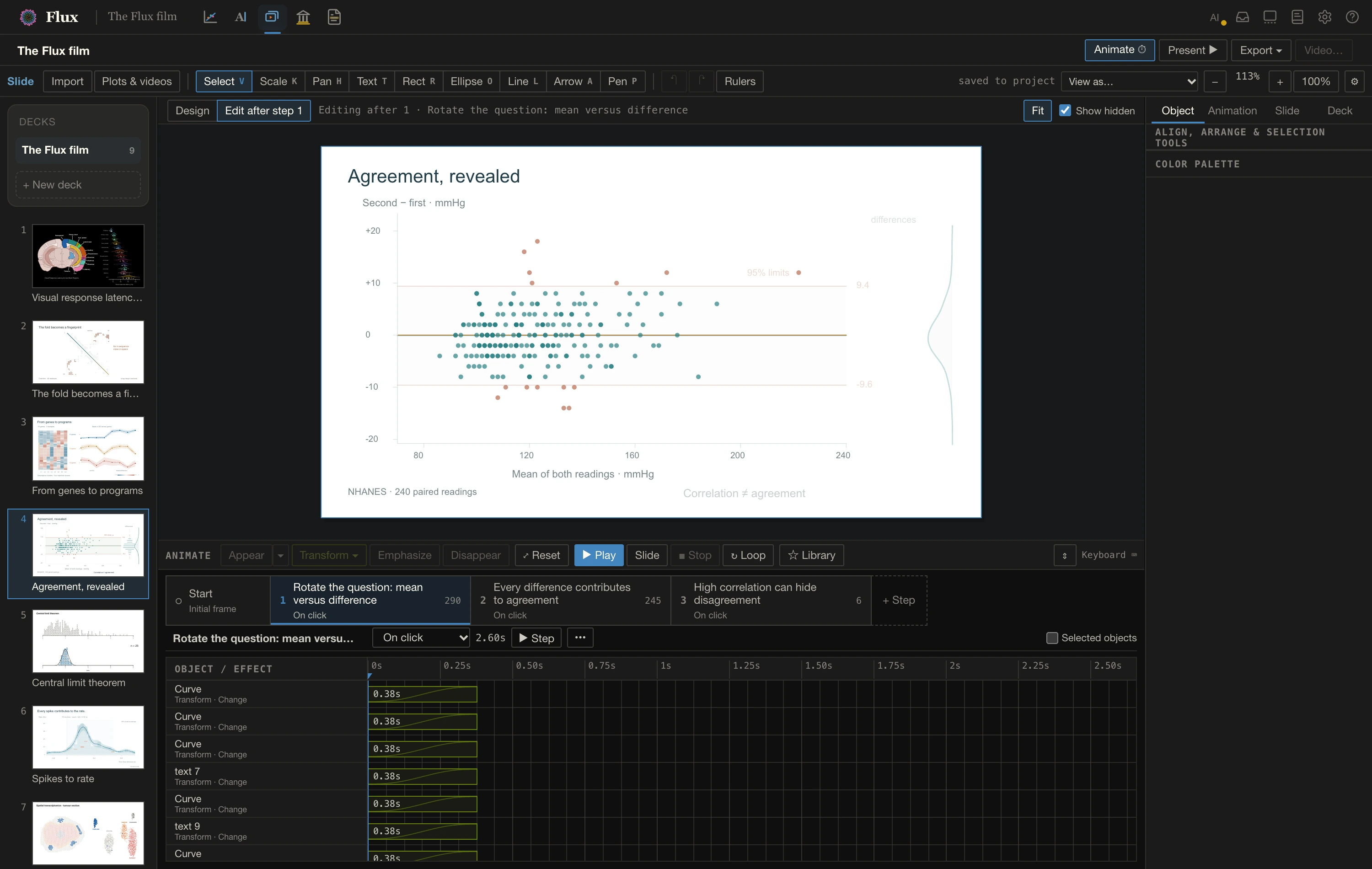
A presentation is a sequence of named steps (called beats in the deck file and commands). Start is the initial presentation frame. Each later step runs On click, With previous, or After previous with a chosen delay. The step strip always stays visible while the timeline shows the selected step’s effects.
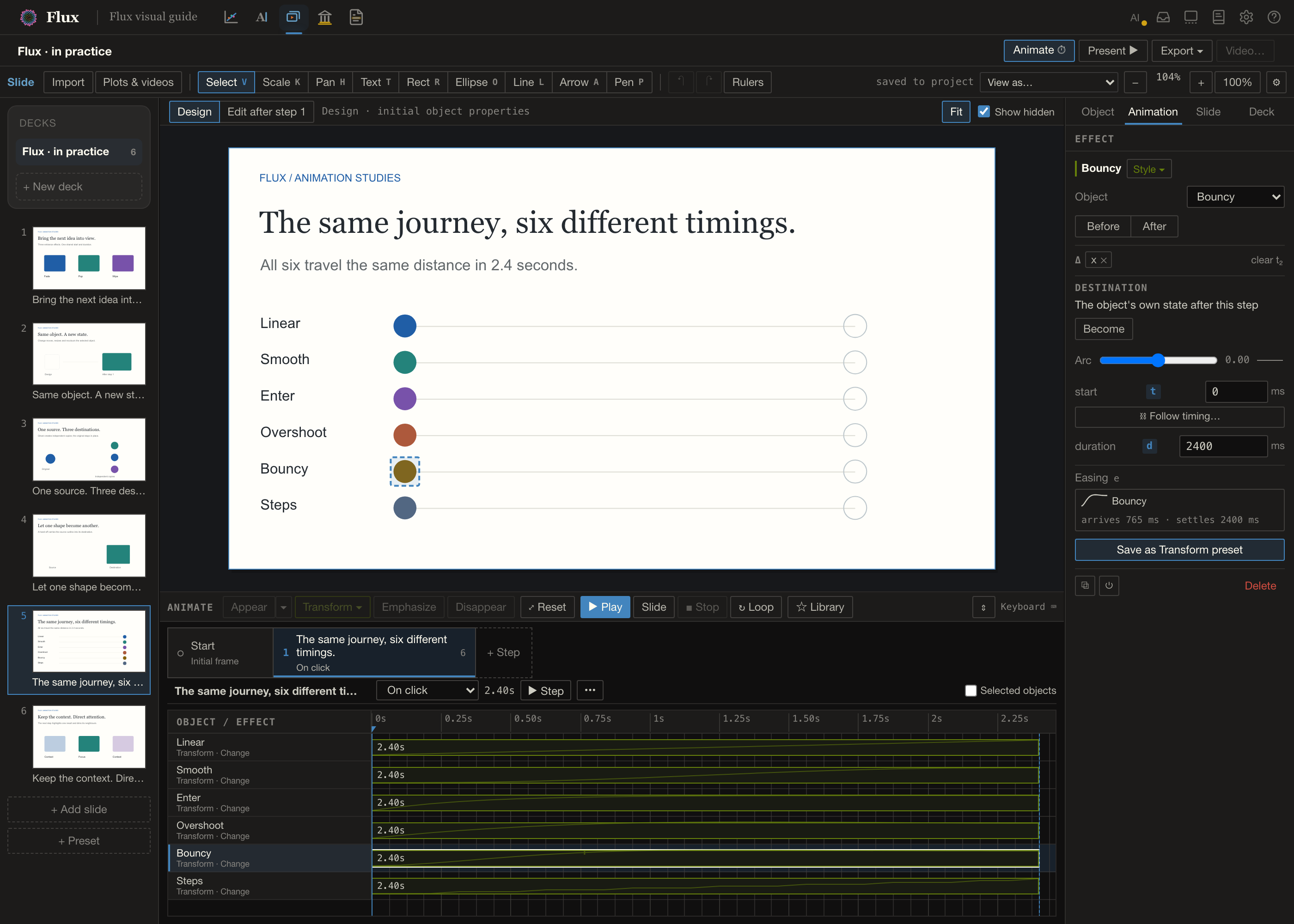
The bar above the stage states where your edits go:
- Design edits the original slide objects.
- Edit after step N shows the result of every step up to N. Move, resize, recolour, rewrite or restyle an object to create or update a Change at that exact step; earlier steps stay intact. Adding, deleting, grouping and renaming objects are structural edits to the slide itself, whichever destination is chosen.
Selecting a different step browses its effects; it does not silently change the editing destination. Choose Edit after step N when you want to shape the newly selected step.
Show hidden displays objects and plot parts that are hidden at the current point (they have disappeared, or they are hand-off destinations that have not landed yet) as faint, selectable ghosts. Turn it on to edit a hidden object or to add an Appear effect to it at a later step. Turn it off to remove hidden objects from the canvas, selection and snapping, so you can work on the objects underneath. Ghost copies do not exist before the step that creates them, so they stay absent even with Show hidden on. The setting changes only your editing view; it never deletes objects or changes what Present and the exports show.
Fit keeps the whole stage visible as you resize the dock and rails; manual zoom or pan keeps your chosen view instead.
Between figures and slides
Send to deck… (in the Figure workspace’s Inspector) turns a figure into a slide. Send to canvas… (in the Slide panel) turns a slide into a figure, which becomes citable as @fig-… like any other. The copied composition is independently editable. Plot source data stays linked unless you deliberately freeze a usage, and a later source refresh preserves your slide-specific layout.
Decks remember the accepted intrinsic size of linked assets so regeneration preserves the same placement scale whether the deck stays open or is reopened later. An older deck without that baseline adopts the currently accepted size once; Flux cannot reconstruct dimensions that were never saved.
Troubleshooting
| Symptom | Cause → fix |
|---|---|
| The animation shortcuts (such as Ctrl+Shift+A) do nothing | The Animator is closed → open it with Animate ⏱ first |
| A plot Become fades a series instead of morphing its data | Continuous data motion requires shared series ids, supported data and matching axis scales. A series without a tweenable counterpart fades on its own (the Animation inspector lists it); only an SVG without semantic IDs crossfades as a whole. |
| An animation issue appears | Select the issue to inspect the effect, then retarget missing objects/parts or adjust overlapping timing |
| A shape becomes text and the letters land as boxes (“No readable outlines for …”) | Flux cannot read letter outlines from the text’s font. Gelasio, the bundled theme font, ships only as a web font, and a browser preview has no access to installed fonts → set the text in an installed font (Georgia, Arial, …). Until then the boxes still land on each letter and fade into the text |
| “Couldn’t open that deck — its file may be missing or corrupt.” appears while an agent edits the deck | Older versions of Flux could mistake a reload that the agent’s next edit overtook for a damaged file → update Flux. The deck on disk is intact, so reopening it shows the agent’s version |
| Present shows placeholder “Title / Subtitle” text | The slide was created with a starter layout → delete the starters, or use the blank layout when composing by hand |